
 AI Editor-in-Chief and Editorial Calendar
Plan which articles to publish, in what order, and when, and then have it all run automatically
You can hand off "what to write" too
"Sorabun > Leave It to AI" (top tab "AI Editor-in-Chief (Article Planning)") isn't just a keyword-suggestion feature. It builds the entire article production plan.
How to use it
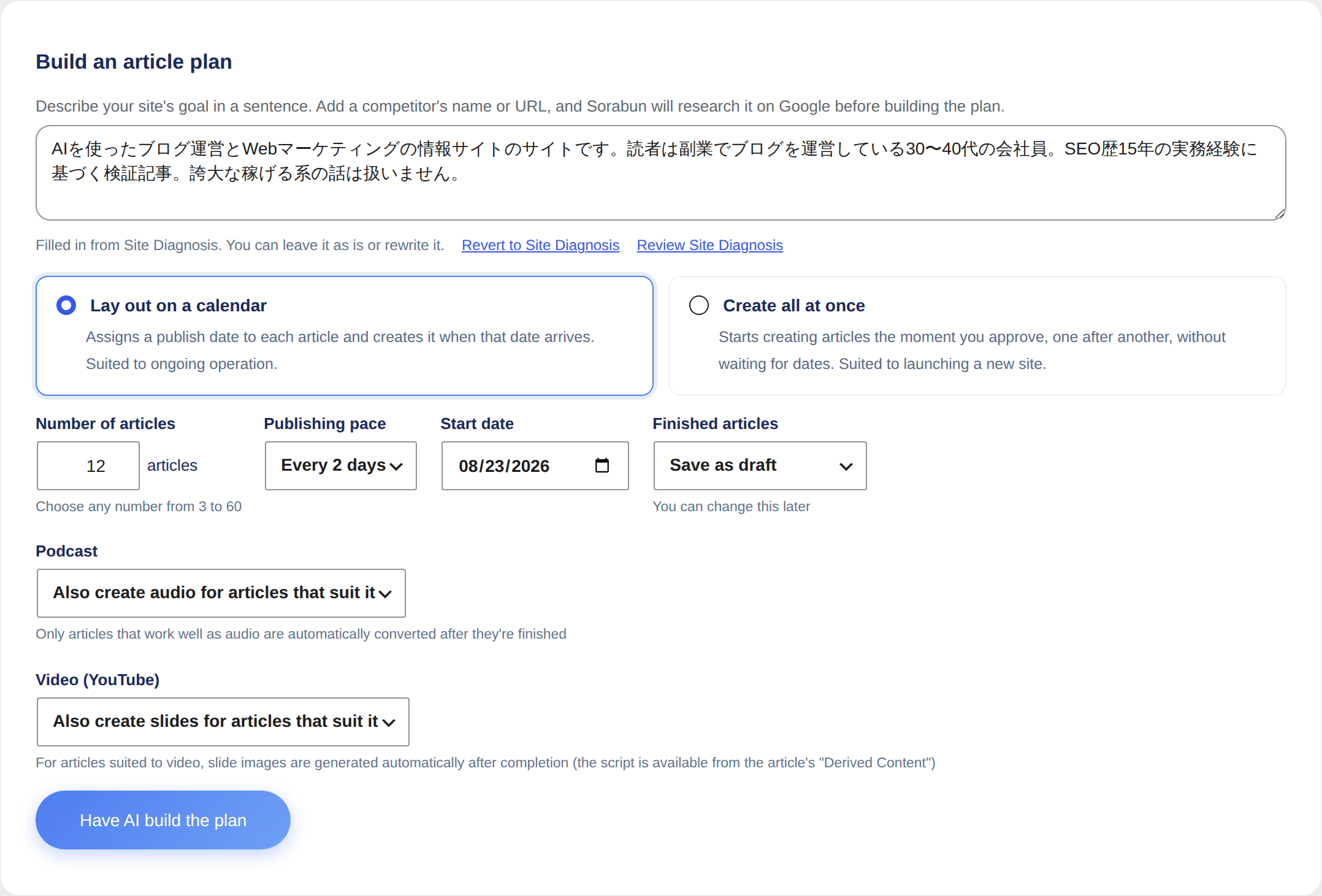
- Write your site's goal in a sentence.
Example: "This is a hometown tax donation info site. Our competitor is 'Furusato Choice Magazine.' I want to grow beginner-focused search traffic over the next 3 months." - Choose the number of articles, publishing pace, and start date
- Click "Build a plan"
The AI carries out three steps in order, showing on screen what it looked at along the way.
- Analyze the site: reads existing articles and categories to find topics that aren't covered yet
- Research competitors and search trends: investigates using actual Google searches
- Assemble the editorial calendar: assigns publish dates and ordering
The order has a reason behind it
For every article in the finished plan, it states why that order and that timing. The AI sequences articles using these principles:
- Publish pillar articles first, so later articles can link to them (a topic-cluster structure)
- Mix in long-tail topics with weak competition early on, so early numbers start moving
- Publish seasonal topics 3-4 weeks before demand for them peaks
- Never include keywords that duplicate an existing article
Keywords are checked against real search data before they're ordered
The AI's keywords aren't used as they are. Every suggestion is checked against the following data: plans, plan extensions, replacements, and keywords pulled from the chat. Only data you have keys for is used. Anything unknown is treated as "unknown", not removed.
| What's checked | Data used | Result |
|---|---|---|
| Whether it targets the same search as an existing article | Every published, scheduled, and draft article | Counted as the same even if only word order or particles differ ("確定申告 やり方" and "確定申告のやり方を解説"). Different targets ("LINE 使い方" and "LINE公式アカウントの使い方") and deeper follow-ups that add a word stay as separate articles |
| Whether this site already appears for that search | Search Console (Site Kit) | If it ranks within the top 20, a new article would compete with your own, so it's marked "grow it by rewriting instead" |
| Whether people search for it | Search volume (DataForSEO), Google autocomplete (Serper) | Removed if search volume is 0. If it appears in autocomplete, people really type it |
| Whether you can win | Top search results (Serper / SerpApi) | "Hard to win" if the top results are almost all big or official sites; "a good target" if few are |
| Whether it's shaped like a search query | The words themselves | Sentences, titles with brackets, and overly long phrases are removed |
Suggestions worth reconsidering show the reason in a yellow band (which article it overlaps, what position it already ranks at, that no one searches for it, and so on). Other suggestions get labels such as "searched ◯ times a month," "appears in autocomplete," or "few big sites at the top (a good target)."
Before building a plan, Sorabun also gives the AI words people actually search for: Google's related searches, autocomplete, and "People also ask," plus Search Console queries. The AI then matches its keywords to those forms.
With a Serper.dev key ("Settings > Search data source"), autocomplete, related searches, and the strength of the top results are checked. With a DataForSEO key, search volume is checked. With Search Console (Site Kit) connected, searches you already rank for are sent to rewriting. With none of these, only overlap with existing articles and the shape of the words are checked.
The same checks are used for suggestions on other screens: "Suggest missing keywords" on New Article, "next articles to write" in Site Diagnosis and Site Checkup, "AI picks" in SEO Insights, the AI Director, and the news watcher. If the AI Director's keyword targets the same search as an existing article, it rewrites that article instead of writing a new one.
"Build them all at once" mode
If you're launching a site and want everything built in a batch, without waiting for publish dates, choose "Build them all at once" mode. The moment you approve the plan, articles start being produced one after another.
- You can set how many articles run in parallel, from 1 to 5. As soon as one finishes, the next starts, so the whole batch runs through to the end without overloading API limits or your server
- The order the AI decided on (pillar articles first, related articles after) is used directly as the production order
- While in progress, the screen shows "Building ◯ at a time"
You can set the number of articles anywhere from 3 to 60.
Approve it, and it starts running on its own
Click "Start automatic execution with this plan," and articles are generated automatically once their scheduled date arrives (checked once an hour).
From the plan screen you can:
- Check progress (counts of completed / in progress / scheduled / failed)
- Build now, change the publish date, or exclude any individual article
- Rebuild a completed article
- Retry a failed article
- Pause, resume, or delete the entire plan
Clicking an article's title in the calendar scrolls to that article's details. Purple marks a pillar article, green means completed, yellow means in progress, and red means failed.
You can add more once a plan is finished
Once every article in a plan has been built, the screen shows "This plan is finished" and an Extend this plan button appears. Click it, and Sorabun builds a continuation of the current plan.
This isn't the same as starting a new plan from scratch.
| Extending the plan | Starting a new plan | |
|---|---|---|
| Site analysis and competitor research | Skipped (reuses what was saved when the plan was built) | Redone from scratch |
| Topic cluster | Inherits the existing structure | Rebuilt |
| Topics already covered | Never repeated | AI is just told not to duplicate them |
| Pillar articles | Reinforced with more related articles, if one already exists | Placed first again, as usual |
| Time and cost | One AI request | Three (analysis, research, assembly) |
The articles to add are chosen using these principles:
- Fill out clusters that are still thin. If a pillar article already exists there, add related articles that support it
- Prioritize articles that link internally from ones you've already finished (follow-ups, deeper dives, comparisons)
- Only start a new cluster once the existing clusters are sufficiently filled out
- Never repeat a topic that's already in the plan, or one from an article you've already finished
You can set the number of articles to add starting from 1. The publishing pace and start date are pre-filled with the same pace the plan is already using (if it's running at one article every 3 days, that's what appears; the continuation's start date defaults to the day after the plan's last scheduled date). You can change either.
Click "Build a continuation" and a list appears. Review it, then click "Add this continuation to the plan." Once you add it, the plan starts running, and articles are built as their scheduled dates arrive.
Even before a plan is finished, you can add articles anytime from "Add articles" in the top right of the plan screen. Use it when you just want a few more.
Once you hit that cap, you can't add more. Start a new plan instead.
They used to disappear once finished. Now they stay on screen. If you want to start fresh on a different theme, click "Start a different plan." The old plan isn't deleted, only hidden, and starting a new plan is what puts the new one on screen instead.
You can still edit the title and topic before it's built
You don't have to use the plan the AI drew up as-is. For any row that hasn't been built yet, click "Edit" to change two things.
| Item | What you can do |
|---|---|
| Article title | Rewrite it. Leave it blank and the AI will assign one when it writes the article |
| Topic (target keyword) | Swap in a different topic |
Swap the topic, and that row becomes an entirely different article. A topic you set by hand is labeled "Topic set manually," so you can tell it apart from ones the AI chose.
The AI's write-up of "why this article", along with the search volume and cluster grouping, describes the original topic. Once you swap in a different topic these no longer match reality, so they're cleared.
You can't change the topic of an article that's already being generated. If the target shifted midway through writing, it would be unclear what's actually being produced. If you want to redo a finished article, use "Rebuild" below instead.
Also, within the same plan you can't have the same topic twice. That would produce two copies of the same article.
You can rebuild an article you don't like
A "Rebuild" option appears on the row for any completed article. Click it, and the AI researches current information again and rewrites the same article from scratch.
- The URL and publish status stay unchanged. Even if the article is already published and linked to, no link breaks
- The current body text is replaced by the new content. Any manual edits you made are not preserved
- The original body text remains in WordPress's revision history, so you can always roll back
- If a featured image already exists, it isn't rebuilt. A new one is only created if none was successfully generated last time
While rebuilding, the row shows "Rebuilding ○%" and the edit button is hidden, which prevents someone from opening and editing an in-progress rewrite, only to have it overwritten once it completes.
Once done, the date is recorded as "Rebuilt on Month Day."
If the target article was deleted (or moved to trash), there's nothing to rewrite, so Sorabun builds a new article from scratch using the same keyword. In this case it's created as a brand-new article.
Unless "Settings > Generation Defaults > Post Status" is set to Publish, articles are saved as drafts. Review the content before publishing.