
 Podcast Distribution
Turn articles or written text into audio episodes and distribute them to Spotify and Apple Podcasts
Your articles become episodes
From an article you've written, Sorabun can generate the script, the audio, and the RSS feed for distribution. No recording or editing required. You can also create an episode without an article. Just write the text on the spot.
One click from the Posts list
Any article, whether written by hand or by AI, can become audio in one click from the "Posts" list. Hover over a row and "Create Podcast" appears next to Edit / Trash / View. Just click it. It works the same way on Pages.
You don't need to open the Podcast Distribution screen and hunt for the article. Clicking starts generation right there, and the finished episode is listed under "Sorabun > Podcast Distribution."
It doesn't appear if you haven't set a TTS API key, or if you've turned Podcast off under "Settings > Features in Use."
Steps
- Set your text-to-speech API key under "Settings > Podcast Generation (TTS)" (Fish Audio or OpenAI)
- In "Sorabun > Podcast Distribution", use "Create episode" to pick an article or write text
- On the same screen, enter the show information (title, description, cover image, category)
- Register the generated RSS feed URL with Spotify, Apple Podcasts, and other platforms
Creating from text
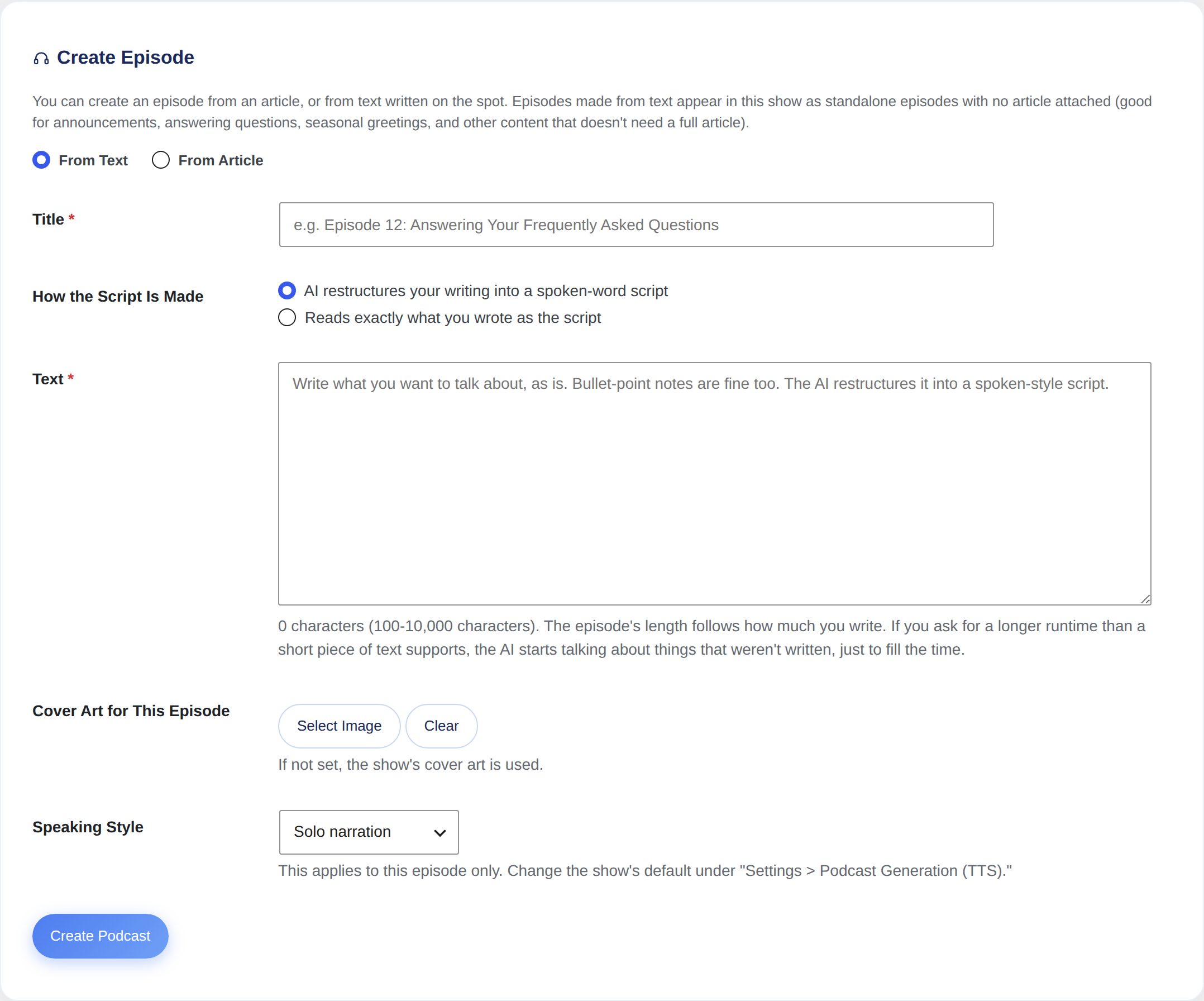
Sometimes you want to put out an episode that isn't quite worth turning into an article (an announcement, an answer to a question you received, a seasonal greeting). For episodes like these, choose "From text" in "Sorabun > Podcast Distribution > Create episode" and write a title and the text.
- Just write down what you want to say. Bullet-point notes work fine too, since the AI restructures it into a spoken-language script (if you've written your own script, see the next section)
- 100 to 10,000 characters. The episode length is set to match how much you write
- You can give this one episode its own cover art (if not set, the show's cover is used)
- You can also switch the speaking style (solo narration / dialogue) for just this episode
Reading your own script exactly as written
If you write your own script, having the AI restructure it just gets in the way. You want to use this in place of a recording session, but it won't read back what you actually wrote.
Under "How the Script Is Made," choose "Reads exactly what you wrote as the script" and Sorabun reads your text aloud without sending it through the AI at all. The wording doesn't change, not even by a single character.
There are only three rules for how you write it.
- To split lines between speakers, start the line with
A:orB:. If you've set speaker names under "Settings > Podcast Generation (TTS)," you can use those names instead (Sakura:, for example) - A line with no prefix continues with whichever speaker spoke last. In solo narration, even a line starting with
B:is still read by the single voice - A line that's pure stage direction, like
[Jingle], is skipped. Reading it aloud as text would make the voice literally say "jingle," which just sounds like a mistake to anyone listening
Long paragraphs are read out split at each period. A long stretch of text with no periods is passed through as a single utterance, so break it up with periods wherever it reads best.
The finished episode is listed alongside episodes made from articles and distributed through the same RSS feed. Layering BGM works the same way too.
When creating from an article, the length is fixed at 8-12 minutes, because articles tend to run a similar length.
When creating from text, the text might be only 300 characters. If you told the AI "make it 8-12 minutes" anyway, it would start saying things that were never written just to fill the time, and listeners have no way to tell that from the real thing. So instead we match the length to the text, and also tell the script writer: "don't add anything that isn't in the original text; if there isn't enough material, let the episode end short."
They're stored in a dedicated container that doesn't show up on the site or in the admin post list. Since they aren't articles, showing them in a list or site search would lead readers to an "article" they can't actually open.
Because of this, you also delete them from "Sorabun > Podcast Distribution." Use "Delete" on each row to remove the episode along with its audio. You can check the original text at any time from "View original text" on the same row.
Creating from an existing article
Choose "From article" in "Create episode" to pick from the site's posts and pages and turn one into audio (the 200 most recent, newest first). This covers not only articles Sorabun created but also articles you published before. If the article has a featured image, it's used as that episode's cover art.
Detailed settings
Under "Settings > Podcast Generation (TTS)" you can fine-tune how the show is produced.
| Item | Setting key |
|---|---|
| Text-to-speech service | podcast_provider |
| Speaking style (solo narration / dialogue) | podcast_mode |
| Show name | podcast_show_name |
| Opening/closing boilerplate | podcast_opening / podcast_ending |
| Speaker names | podcast_speaker_a / podcast_speaker_b |
| Fish Audio voices | fish_voice_a / fish_voice_b |
| OpenAI TTS voices | openai_voice_a / openai_voice_b |
| Reading dictionary (fixes misreadings) | podcast_yomi |
| Extra instructions for the script | podcast_custom_prompt |
| Lead-in silence | podcast_lead_silence |
| Pause between lines | podcast_gap |
| Add BGM (jingle) | podcast_bgm |
| How BGM is layered (lead-in, tail, overlap, ducking amount) | podcast_mix_lead / podcast_mix_tail / podcast_mix_overlap / podcast_mix_duck |
marin and cedar sound the most natural. alloy and echo are older-generation voices and sound flat.
What you write in "Extra instructions for the script" is passed not only to the script writer but also directly to the narration AI's delivery. Instructions like "speak in a calm, lower voice" or "don't talk too fast" take effect as written, so if a reading sounds flat, add a note here.
Choosing a text-to-speech service
For narration, Sorabun uses either Fish Audio or OpenAI TTS. Fish Audio is the default.
| Fish Audio (default) | OpenAI TTS | |
|---|---|---|
| Key | fishaudio_api_key (you'll need to get a new one) | Reuses openai_api_key |
| TTS model generation | You can choose it (setting key fish_model; default is S2.1 Pro) | Fixed |
| Japanese | Natural, with good inflection | Natural, but fewer voice options |
| Choosing a voice | Voice ID (fish_voice_a / fish_voice_b) | Voice name (marin, cedar, and so on) |
| Your own voice | Can be registered and used (voice cloning) | Not supported |
If you already have an OpenAI key and just want to try things out, OpenAI TTS lets you get started without getting a new key. If you're going to keep the show running, we recommend Fish Audio, since it lets you choose a voice.
Fish Audio key and voice ID
- Create an account at fish.audio and issue a key under "API Keys"
- Paste it into "Fish Audio API key" under "Settings > Podcast Generation (TTS)"
- To choose a voice, open the page for the voice you want in fish.audio's voice library and paste the letters and numbers at the end of the URL (the voice ID) into "Voice A (main)"
- For the dialogue format, also paste a different voice's ID into "Voice B (dialogue)"
It still works if you leave the voice ID blank (a default voice is used). Try it once with it blank, and set it up once you decide you want a different voice.
If you record and register your own voice on fish.audio, that voice gets a voice ID too. From there, just paste it into "Voice A" the same way, and you can put out an episode in your own voice every day.
Pricing is usage based, charged per character read aloud. You're only charged when the audio is generated, so it costs nothing extra no matter how many people listen to a finished episode. Check each provider's pricing page for exact rates.
TTS model generation (fish_model)
Fish Audio lets you choose the TTS model generation. The default is S2.1 Pro (the newest as of September 2026). You can change this from "TTS model generation" on the settings screen.
| Option | When to use it |
|---|---|
| S2.1 Pro (recommended) | The one to pick when you're not sure. It sounds the most natural |
| S2.1 Pro free tier | When you want to try it out first |
| S2 Pro | The previous generation. Use it if you want to go back to an earlier voice |
| S1 | An older generation |
Changing it partway through the show changes how the voice comes across from that point on. To listeners it can sound like the voice suddenly became someone else, so we recommend deciding on a generation before you start.
If the generation you specified ever becomes unavailable, the episode is read using fish.audio's own default instead. The episode itself still gets created. We set it up this way because having the specified generation not take effect is better than having the show stop the day a generation is retired.
Choosing a speaking style
- Solo narration: a narration format, suited to shows that convey information plainly
- Dialogue: a back-and-forth between two speakers, easy to listen to and suited to longer content
Showing a player on the article page
Enable "Add player to article" in the show settings and an audio player appears below the article. Readers can then choose to read or listen.
Once you register the RSS feed URL with a platform, future episodes are picked up automatically.
Episode length
Length is decided by how much source article or text there is. Sorabun figures 450 characters as roughly 1 minute, and gives the script-writing step a target length scaled to that. Asking for a length that doesn't match the amount of material makes the AI start saying things that were never written, just to fill the time.
| Source text | Requested length |
|---|---|
| 300 characters | 2-5 minutes |
| 2,250 characters | 3-7 minutes |
| 4,500 characters | 8-12 minutes |
| 9,000 characters | 18-22 minutes |
| 12,000 characters (the cap) | 23-27 minutes |
The cap is 25 minutes. Source text tops out at 12,000 characters, so you can't request more than that. For episodes made from an article, the length never drops below 8-12 minutes even for a short article, so the show stays consistent.
There is also a 600 line cap on how many lines get read aloud. This is a safeguard against the AI running away, and even a 25-minute episode never comes close to it.
"Layer BGM" unpacks and mixes the audio inside your browser. Turning an MP3 back into a waveform swells it to nearly a hundred times its size, so a 25-minute episode can reach several hundred MB, and depending on the device, this can stall partway through or crash the tab.
For episodes over 20 minutes, a confirmation appears when you click. "Finish All Unlayered Episodes" skips them instead, since one failure would otherwise take every episode queued after it down with it. The published audio is unaffected, so even if this fails, the episode itself is left intact.
If you want BGM on a long episode, use "Add BGM (jingle)" in settings instead (it only splices before and after). This is spliced on the server side, so it isn't affected by length.
This happened because the cap was 120 lines. Since each utterance is 1 to 3 sentences, 120 lines only added up to about 6 minutes, and anything past that was silently dropped. The audio still played back normally, so the only symptom was that it ended partway through with no closing remarks, meaning you would not notice until you listened all the way to the end. The longer the article, the more likely this was to happen.
v2.54.0 raised the cap to 600 lines. Now, if an episode ever does get cut short, the episode list under "Sorabun > Podcast Distribution" shows how many lines were not read aloud.
Creating pauses
Narration is generated one line at a time and then stitched together. Stitched together as is, the gap at every line break comes out to almost zero seconds, so it sounds less like a person talking and more like a machine reading text aloud. Under "Settings > Podcast Generation (TTS)," you can add two kinds of pause.
Lead-in silence
podcast_lead_silence. The gap between when playback starts and when the first voice comes in. The default is 0 seconds (no gap added).
Depending on the podcast app or device your listeners use, the very first word can sometimes come out clipped. If your opening greeting always seems to start partway through, try setting this to 1-2 seconds.
Fixing misreadings (the reading dictionary)
The narration AI guesses how to read kanji from context. Japanese is weak in this respect, and this is what happens.
| What you wrote | How it gets read |
|---|---|
| 会社に入る | Read as "iru" (as in kaishaniiru, "to be at the company"), instead of the correct "hairu" ("to join the company") |
| 一日 | Could be "ichinichi" (a whole day) or "tsuitachi" (the 1st of the month), with nothing to say which |
| 行った | Could be "okonatta" (did, performed) or "itta" (went), with nothing to say which |
| Personal names, company names, product names | These are essentially never read correctly |
Write it as 会社にはいる instead, and the engine re-segments the phrase, reading it as 「会社には、いる」 ("as for the company, someone is there"). Fixing it with hiragana doesn't work.
Writing it in katakana fixes it. Katakana is read as a plain sequence of sounds, so the engine never re-segments it into words.
Write one entry per line under "Sorabun > Settings > Podcast Generation (TTS) > Reading dictionary" (podcast_yomi).
`` 会社に入る,カイシャニハイル 入社,ニュウシャ 空文,ソラブン SEO,エスイーオー ``
- The separator can be a comma, a tab,
=>, or→ - A line starting with
#is treated as a comment and skipped - Only the text handed to the narration engine is substituted. The article body and the on-screen script both keep the original wording
- If you add both a word and one it overlaps with, like 入 and 入社, the longer one takes priority
Having the AI find words likely to be misread
Press "Have the AI find words likely to be misread" below the reading dictionary, and it reads your recent articles and proposes candidate words where the reading could go either way.
- Words whose reading splits depending on context (入る, 一日, 行った, 開く, and so on)
- Personal names, company names, product names
- Industry jargon and strings of Latin letters (SEO, CTA, API, and so on)
You can uncheck any candidate you don't want. Select only the ones you want to add, press "Add to dictionary," and confirm with "Save settings" at the bottom of the page.
Proposing candidates is as far as the AI's job goes. It never silently rewrites the article body. If it fixed things on its own, there would be no way to tell whether the result actually improved or broke, and no way to trace the cause when something went wrong.
Avoided already, at script-writing time
The AI that writes the script is already instructed not to use phrasing whose reading could go either way in the first place. For 会社に入る, for example, it rephrases to something like 会社に入社する or 会社に加わる, wording where the reading resolves to only one possibility.
The dictionary mainly ends up needed for things rephrasing can't work around (personal names, company names, product names, and the like).
Re-reading just one line
When one line's intonation sounds off, you can re-read just that line. There's no need to regenerate the whole episode.
In the episode list under "Sorabun > Podcast Distribution," click "+ Re-read line by line" below the audio, and that episode's script is listed line by line. Click "Re-read this line" on the one that sounded off.
- Only that line's audio changes. The other lines stay the same
- The distribution URL stays the same. Since that's the URL listed in the feed, the episode already out on each platform just gets the new audio, in place
- You can also fix the line's text before re-reading it. The reading dictionary works here too, so you can rewrite 会社に入る as 会社にハイル and then re-read it
- If the line's length changes, the episode's length stretches or shrinks to match
If you re-read a line on an episode finished with "Layer BGM," that layering is lost (the episode reverts to having only the jingles spliced before and after). Press "Refresh" again after re-reading. Layering BGM under the voice happens inside your browser, so the server can't reproduce it.
Re-reading just one line needs a record of where that line sits in the audio. Sorabun didn't keep this record before this feature existed, so episodes made before that don't show "Re-read line by line." Regenerate the whole episode and it becomes available.
Episodes whose audio was replaced in the media library are also excluded, since it no longer matches the record (splicing while mismatched would cut into the middle of a different line).
Pause between lines
podcast_gap. The pause placed between sentences. The default is 0.2 seconds. Set it to 0 and lines are stitched together as is, just as before.
The length you set here is a baseline: it automatically stretches or shrinks based on how the line ends.
| How the line ends | Pause | At 0.2 sec |
|---|---|---|
| Ends with 。 (or an ASCII .) | Baseline length | 0.2 sec |
| Ends with ? or ! (or ASCII ? or !) | Longer (a question or exclamation needs a beat before what follows) | 0.26 sec |
| Ends with 、 or … (or an ASCII ,) | Shorter (the sentence is not yet finished) | 0.1 sec |
| No ending punctuation | Slightly shorter (often a call-out or a heading) | 0.14 sec |
| Followed by a blank line | Adds one full pause on top (the topic is changing) | 0.4 sec |
The audio the narration AI returns already carries a small silence of its own at the end. Whatever you add here sits on top of that. Even at 0.2 seconds, it can sound more like 0.4 seconds once you actually listen. When you're deciding on a number, go by what you hear, not the number itself.
v2.64.0 shortened the default from 0.4 seconds to 0.2 seconds. If you were still on the 0.4-second default, it switches over to 0.2 seconds automatically on update (if you had entered a different number of your own, that stays as it was).
No pause is added after the last line. What follows there is either the closing BGM or simply the end of the file.
For episodes made with "Reads exactly what you wrote as the script," a break at a blank line becomes a long pause. Leave a blank line wherever you want to start a new paragraph. For episodes where the AI writes the script, each line is already its own unit, so only the baseline pause is added.
Reading speed
podcast_speed. Controls the speed of the whole show. The default is 1.0 (normal). 0.9 is a bit slower, 1.1 a bit faster. You can set anything from 0.6 to 1.5.
Listeners can also change the speed on their own playback app. Think of this setting as the show's baseline speed rather than a dial to push far in either direction; a big change here tends to sound unnatural.
It works with both Fish Audio and OpenAI TTS.
Writing delivery style directly into the script
For episodes made with "Reads exactly what you wrote as the script," you can also write how a line should be read into the script itself. It uses the same style as pauses: the tone changes for every line from that point on.
`` A: That's the end of the intro. 【slow】 A: Here's the most important part. 【normal】 A: All right, let's move on. ``
| What you write | Effect | Fish Audio | OpenAI TTS |
|---|---|---|---|
【slow】 | A bit slower | ○ | ○ |
【fast】 | A bit faster | ○ | ○ |
【bright】 | A bright, upbeat tone | × | ○ |
【soft】 | A gentle, quiet tone | × | ○ |
【emphasis】 | A clear, forceful tone | × | ○ |
【normal】 | Resets to normal | ○ | ○ |
- Each word accepts a few variants, all case-insensitive:
【slow】also works as【slowly】or【calm】;【fast】also as【quick】or【quickly】;【bright】also as【cheerful】or【happy】;【soft】also as【softly】,【gentle】, or【quiet】;【emphasis】also as【strong】or【emphasize】;【normal】also as【reset】 - The Japanese words work too (
【ゆっくり】,【明るく】,【ふつう】, and so on) - It stays in effect for every line after that, until you write
【normal】. No need to rewrite it for each paragraph - It carries across a change of speaker as well (no need to rewrite it every time
A:orB:comes up) - A line that's just the mark isn't read aloud
【bright】, 【soft】, and 【emphasis】 are passed to the narration AI as a request written in words. Only OpenAI TTS can take instructions that way, so Fish Audio simply skips them (no error, the line is just read normally).
Speed (【slow】, 【fast】) is passed in as an actual setting on the narration itself, so it works on either service.
Writing pauses directly into the script
If you want to decide the exact number of seconds yourself, you can write it directly into the script. This works for episodes made with "Reads exactly what you wrote as the script."
`` A: That's the end of the intro. 【間3秒】 A: Now for the main topic. ``
Here's how to write it. The brackets can be any of 【】, [], (), or ().
| What you write | Pause |
|---|---|
【間】 | 1 sec |
【間3秒】 | 3 sec |
【3秒】 | 3 sec |
【間0.5秒】 | 0.5 sec |
- English forms work too, such as
【pause】and【pause 3s】 - Full-width digits (
【間3秒】) are also read correctly - Write them back to back and they add up (
【間】followed by【間2秒】makes 3 seconds) - The upper limit is 10 seconds
- Even if "Pause between lines" is set to 0, a pause you write in still gets added. A pause you write on purpose is set up so it never loses to the setting
【3】, is not read as a pauseThere's no way to tell it apart from a stage-direction sequence number, so as before it's simply skipped over. That's safer than silently inserting a long stretch of silence, so always include either 間 or 秒.
A pause written at the very top of the script also has no effect (there's no line before it). Add an opening pause using the "Lead-in silence" setting above instead.
Set the pause too long and listeners will think playback has stopped before the next line arrives. The upper limit is 2 seconds, and even with the automatic stretch it never goes past 3 seconds. 0.3-0.5 seconds is a good starting point.
BGM (jingle)
"Settings > Podcast Generation (TTS) > Add BGM (jingle)" attaches BGM before and after the narration. It's on by default.
Just playing the same jingle at the start and end of the show makes it feel a lot more like a real program. No extra tools are needed, so it works on shared hosting too, and it's applied automatically to scheduled posts as well.
Choose the BGM from the media library under "Settings > Podcast Generation (TTS)." You can set separate opening and closing tracks, and you'll get a warning on the spot if the length or format doesn't fit.
This is as far as automatic processing goes. Since it just attaches BGM before and after, it does not lay BGM under the voice (ducking).
Layering BGM under the voice (manual)
If just attaching BGM isn't enough, press "Layer BGM" for that episode and it re-mixes the BGM under the voice. The button sits next to "Play" on each row of the episode list in "Sorabun > Podcast Distribution" (it only appears once BGM is set).
Here's what happens when you press it.
- The opening BGM plays alone, then automatically dips when the voice comes in (ducking)
- It returns to its original volume once the voice ends, then fades out
- The closing BGM overlaps briefly with the end of the voice before it plays
- Because the BGM is converted to match the narration's format, you don't get the brief break at the seam that can happen with the simple attach-only version
You control how it's layered under "Settings > Podcast Generation (TTS) > How BGM is layered."
| Item | Meaning | Default |
|---|---|---|
| Lead-in | Time from when the BGM starts to when the voice comes in | 2 sec |
| Tail | How long the BGM lingers after the voice ends | 10 sec |
| Overlap | How long the closing BGM overlaps the end of the voice | 2 sec |
| BGM under the voice | How many dB to lower the BGM while the voice is playing | 20 dB |
Since we can't assume the server has audio-processing tools (ffmpeg) installed, the audio is assembled in the browser you have the admin screen open in. For a 20-minute episode this takes about 1-2 minutes, and you need to keep this screen open the whole time.
If you close it partway through, the audio currently live is untouched. The replacement only happens once the export finishes completely and the server has received it, so you can always try again later.
This button only repaints an episode that's already finished. Nothing happens unless you press it. Automatic article generation and scheduled posting still complete and publish, with BGM attached before and after, exactly as before.
Before v2.20.0, "audio finishing" worked the other way around: finishing interrupted automatic generation partway through, and episodes got stuck "waiting to finish" without BGM, so scheduled posts would go live without BGM. Because of that, we removed it once already.
The narration audio from before layering is kept, so you can change the layering settings and redo the finish as many times as you like (no need to redo text-to-speech, and it costs nothing). Since the audio URL doesn't change when it's replaced, your published RSS feed keeps working as-is.
Layering requires converting the MP3 back into a waveform and re-encoding it to MP3. Simple attaching involves no conversion, so this is the one place where you lose a generation of quality. Listen to both and decide whether it's worth the trade for ducking.
For episodes made before v2.28.0, it can be unclear where the BGM starts and ends (for example, if the BGM was reconfigured afterward). Pressing the button on those episodes shows "Cannot layer," so re-generate the audio first and then try again.
About volume
Sorabun doesn't measure and normalize loudness (it lowers the level only enough to avoid clipping when layering). That's because Spotify and Apple Podcasts each re-normalize loudness on playback, to roughly -14 LUFS and -16 LUFS respectively. Since the platform does the adjusting, matching it precisely on our end wouldn't show up in the result. It would only add processing weight and more settings.
If you want to dial in the volume precisely, run the exported MP3 through an audio-finishing service like Auphonic or your own editing software. Replace the file in the media library and your published RSS feed keeps working as-is.
We haven't brought back the server-side ffmpeg finishing path. Shared hosting typically doesn't have it installed, which would break the main path, and maintaining it alongside the browser-based version would leave no way to tell which pipeline actually produced a given file.